
You've got the footage. It's cut, graded, under two minutes, the product is legible, and someone on the team already signed off on the thumbnail. Then you open Seller Central, find the ASIN, and either the upload option isn't there, or the file goes in and the detail page looks exactly the same a week later.
Neither outcome means you did something wrong. Adding video to an Amazon listing is less a creative task than an eligibility and scheduling task. The constraints Amazon documents least clearly are the ones that break launches: the three-month account rule, the requirement that an ASIN be live before it can accept a file, a review queue measured in business days, and a category rule that can hide an approved video with no error message anywhere.
The order that matters for how to add a video to Amazon listing runs eligibility, then the file, then the queue, then the live page. Only after that does the performance read mean anything.
Check Eligibility and File Specs Before Uploading
A video file can meet every technical requirement and still be unusable if the account or ASIN is ineligible. Amazon's Seller Central requirements for product video generally require the selling account to have been active for more than three months and each tagged ASIN to be created and listed. Confirm both before commissioning or exporting a final video.
Brand Registry is not the gate. Amazon's video upload guidance allows brand-registered and non-brand-registered sellers to use the feature. If the upload option is missing, check selling history, ASIN status, and account permissions first.
Amazon accepts MOV or MP4 files up to 5 GB and 1080p, in horizontal 16:9 or vertical 9:16, with a runtime of 1 to 12 minutes. Check each requirement before uploading:
| Requirement | Amazon limit | What breaks if you miss it |
|---|---|---|
| Account activity | Selling for more than three months | Upload option stays unavailable |
| ASIN status | Created and listed before upload | Video cannot be attached to the product |
| File format | MOV or MP4 | Upload can fail |
| File size | Up to 5 GB | Upload can fail |
| Resolution | Up to 1080p | Upload can fail |
| Aspect ratio | 16:9 horizontal or 9:16 vertical | Upload can fail |
| Duration | 1 to 12 minutes | Upload can fail |
| Thumbnail | JPEG, PNG, GIF or BMP, under 5 MB | Custom thumbnail can fail |
Check the thumbnail separately. It must be a JPEG, PNG, GIF, or BMP under 5 MB. Keep it with the video in the delivery folder so both files are ready for upload.
The expensive mistake: paying for a full shoot before checking account and ASIN eligibility. Confirm those first, then produce the final files.
Before opening Seller Central, document the account start date, confirm each ASIN is live in the target marketplace, and check the export against every limit in the table. Make sure the footage shows the tagged products. A correct file attached to the wrong ASIN can still mislead shoppers.
Plan the creative alongside the technical requirements. Amazon product photography guidance can help align the framing and lighting of still images and video. Clear product demonstrations can also support efforts to boost Amazon conversions with video, but creative quality cannot compensate for an ineligible account or an ASIN that is not live.
How to Upload a Video in Seller Central
A completed upload can still be attached to the wrong ASIN or remain invisible to shoppers. Follow the Seller Central video upload workflow, then check both the submission status and the live detail page.
- Open the upload tool. In Seller Central, go to Upload and Manage Videos and select Upload video(s). Or open Image Manager, select the product, choose the Videos tab in the product-detail pane, and click Upload video.
- Enter a useful display title. Shoppers see the title, not the internal file name. Name the product and the feature shown, such as “TrailRunner 20L pack, how the hands-free hose clips in.”
- Associate the video with the correct ASINs. Check every selection before submitting. A mistaken association can put the video on the wrong detail page.
- Select the language. Choose the language that matches the video and the listing.
- Choose a thumbnail. Use an Amazon-generated frame or upload a replacement. A thumbnail must be JPEG, PNG, GIF, or BMP and under 5 MB; Amazon recommends 1920 × 1080 at 16:9. Check the selected frame, since an automatic capture may show the product mid-motion or out of frame.
- Submit the video for moderation. Upload completion means the file was sent, not that it is customer-facing.
- Check its status. In Upload and Manage Videos, open Manage Videos and review the status. Wait for Published, then confirm the video appears on the live detail page and remains visible there.
Titles that identify the product and feature make assets easier to find in a shared video library. Correct ASIN associations and a matching language reduce avoidable submission problems. Before treating the job as complete, inspect the live page, not just the upload screen.
How Long Approval and Publishing Really Take
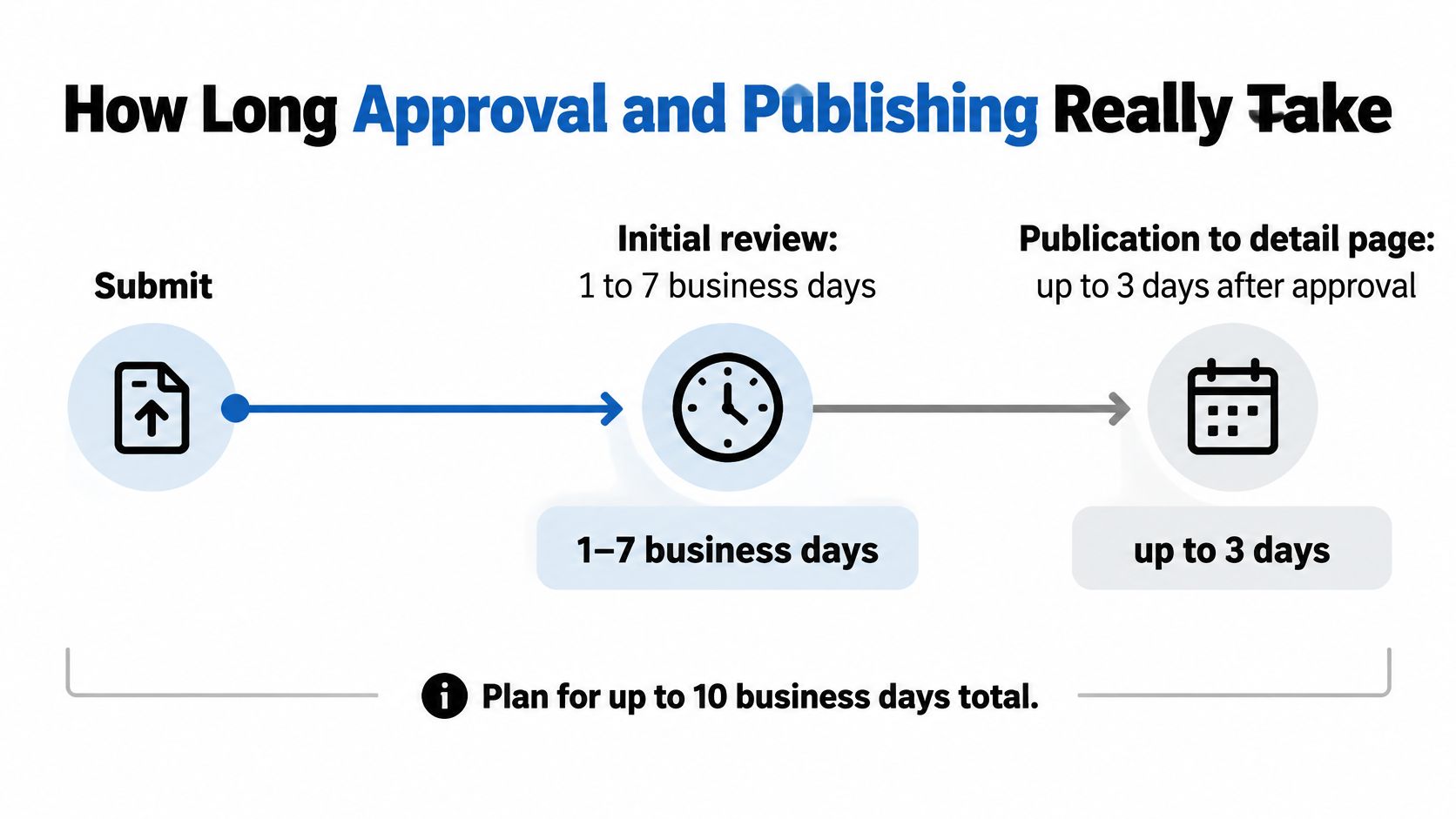
A video submitted ten business days before a launch may still miss the date if Amazon requests changes or approval takes longer than expected. Amazon's video review guidance gives an initial review window of 1 to 7 business days, followed by up to three additional days for publication on the detail page. Plan for as many as 10 business days from submission to publication, and leave more time if the launch date cannot move.
That timing affects promotions, Prime event days, seasonal campaigns, and inventory plans. Submit early enough to absorb a review delay rather than treating the upload date as the publication date.
Count back from the launch. Submit at least ten business days before the event, with extra buffer if a missed date would disrupt the campaign.
Track each submission in one place: submission date, moderation status, approved ASINs, marketplace, and language. Amazon may approve only some of the ASINs in a submission, so check the approved list before assuming every variation is covered.
Approval and placement are separate. An approved video may not appear in the customer-facing location you expected. Confirm publication on the live page before judging the impact, and treat missing placement as a visibility issue to investigate rather than proof that moderation failed.
Once the video is live, check the parent and each child variation to confirm the correct clip appears. Review the thumbnail at mobile size, then assess whether the video demonstrates a feature that the listing images do not already show. Approval confirms policy compliance, not that the video answers shoppers' buying questions.
Measure results on the same ASIN before and after publication over equal periods. Avoid drawing conclusions from the first 48 hours; a page change can affect traffic while shoppers and campaigns adjust. Compare conversion rate and sales rank, and treat any movement as a change that coincided with publication, not proof that the video caused it.
Where Approved Videos Appear on the Detail Page
An approved video can be attached to an ASIN without appearing in every customer-facing placement. Approval and placement are separate, so check the live detail page before assessing the result.
Amazon's Seller Central video guidance describes videos appearing in the Images section of a product detail page. Which placements are available can depend on account eligibility, the ASIN, and Amazon's decisions. Earlier guidance described different placement options, so use the live page rather than treating older placement descriptions as current.
| Placement | What determines visibility | What to check |
|---|---|---|
| Images section of the detail page | The video is approved and associated with the ASIN | Open the live ASIN on desktop and mobile |
| Video associated with selected ASINs | The video was linked to specific ASINs | Check each selected child ASIN, not only the parent |
| Sponsored video placements | Separate eligibility and moderation process | Confirm these placements in their own advertising tools |
A product-detail video uploaded through video management or Image Manager is separate from a Sponsored Brands video, a Sponsored Products creative, or Shoppable video. Each uses a different placement and review path. For the paid format, see this guide to Amazon Sponsored Brands video ads.
Check the live page on desktop and mobile for each ASIN you expect the video to support. Record where it appears, if anywhere, before judging its impact. A video that is visible on one variation may not appear on another.
Why Your Upload Fails and How to Fix It
The complaint that dominates support queues isn't a rejected file. It's no upload option on a product that is plainly live. Amazon's Seller Central instructions make product video available to brand-registered and non-brand-registered sellers alike, but only after the account has been selling for more than three months, and only where the ASIN already exists and is listed. Account age, selling history, ASIN status, marketplace, and account-level permissions all influence access.
So the diagnostic order is fixed. Check the account start date first, then the ASIN's live status in the right marketplace, then permissions on the account. Record the date the account became eligible and keep it, because it's the document that ends the argument when someone asks why creative spend stalled.
Fixes split into two classes, and the difference matters for scheduling. Format, size, resolution, duration and thumbnail problems are quick edits: re-export, reload, done, usually inside a day. Association errors are quick too, fixed by editing the link in Manage Videos. Review rejections are a new review cycle, which means the clock restarts at 1 to 7 business days and can run to about ten business days before the asset reaches customers again.
| Symptom | Likely cause | Fix |
|---|---|---|
| Upload option missing on a live product | Account under three months, ASIN not listed, or account permissions | Confirm account start date, ASIN status and permissions, then retry |
| File rejected at upload | Wrong format, over 5 GB, over 1080p, or outside 1 to 12 minutes | Re-export as MP4 or MOV within every limit |
| Thumbnail rejected | Not JPEG, PNG, GIF or BMP, or over 5 MB | Export a 1920x1080 16:9 image under 5 MB |
| Video not linked to the product | ASIN not associated at upload | Edit the ASIN association in Manage Videos |
| Video rejected in review | Footage does not match the tagged ASINs or breaks guidelines | Revise the footage to show the tagged product, then resubmit |
| Approved but not visible | Still inside the publication window or not Published | Confirm Published status holds for three days, then check the live page |
Review rejections are the ones worth preventing rather than fixing. The clip has to show the products it's tagged to and comply with Amazon's community and video guidelines. Footage of a different variant, a model holding a competitor's product in frame, or a pure lifestyle sequence with no product feature gets turned down, and each rejection costs another week.
A rejected video is a scheduling event, not a creative one. Resubmit the same week with the footage corrected and treat the whole cycle as restarting.
Schedule the Video and Confirm It Before You Scale
A video can be approved and still fail to appear where shoppers can see it. Treat placement as unconfirmed until the live detail page shows the clip on both desktop and mobile.
Start with one live ASIN that sells steadily. Record the submission date, moderation status, approved ASINs, marketplace, and language. After Amazon marks the video Published, check the detail page before changing ad budgets or rolling the asset out across the catalog. Approval, publication, and placement are separate checkpoints.
Use the video to show the product in use, and let Standard A+ Content handle features and comparisons in the description area through image-and-text modules and comparison charts. Avoid using the same lifestyle frames in both assets. For the supporting title, bullets, and image stack, follow this Amazon listing optimization guide.
Unauthorized sellers and MAP violations are separate catalog issues. Online Brand Growth handles Brand Registry enforcement against unauthorized resellers and MAP violations. That work does not change video uploads or placement, so an enforcement case will not fix a missing video.
Once placement is confirmed, compare matched periods for the same ASIN, using equal numbers of days and changing the page content as the only variable. Check the margin impact before extending the test across more products. A confirmed placement is the starting point for measurement, not proof that the video improved results.
One ASIN, one clip, one confirmed placement. Scale after you have a clean comparison.